
DHCP Server Settings
FOG 1.6
This page describes FOG 1.6. The boot file names are the same on FOG 1.5, but how the UEFI boot script reaches the client (and the
--boot-delayoption below) differ — see the 1.5 version of this page.
If you do not use FOG to provide DHCP services in your network (which is a very common and completely supported configuration), then you need to configure the existing DHCP server to use fog as the tftp server to get the pxe boot files from, and you need to configure what boot file to use.
Info
If you do not have access to your DHCP server, or are using a device that isn’t capable of specifying option 066 and 067 (next server and file name) you can use ProxyDHCP instead The most popular ProxyDHCP method with fog is dnsmasq. This article will walk you through that: Proxy DHCP with DNSMasq
Tip
When using Palo Alto Networks firewalls as the DHCP server for PXE/iPXE booting, you may need to configure DHCP Option 150 with the FOG server IP address as the TFTP/next-server address. In some Palo Alto configurations, Option 66 is treated as a TFTP server name/FQDN and may not be enough for PXE clients. Keep Option 67 set to the boot file, such as
secureboot/snponly-shimx64.efifor 64-bit UEFI clients.
These two DHCP options must be set:
Option 66
Set Option 66, also called ‘Boot Server’, ‘Next server’ or ‘TFTP Server’ to the IP address or hostname of the FOG server.
Option 67
Set option 67, also called ‘Bootfile Name’ to the ipxe boot file that works best in your environment. For modern UEFI environments, use the signed chain (you simply enter this file name into the dhcp setting):
secureboot/snponly-shimx64.efi— 64-bit UEFIsecureboot/arm64-efi/snponly-shimaa64.efi— ARM64 UEFI
This is the recommended default even if you are not using Secure Boot
The signed chain boots identically whether Secure Boot is enabled or not — a DHCP request cannot report Secure Boot state, and nothing here needs it to. Pointing every 64-bit UEFI client at the shim covers the Secure Boot machines and costs the others nothing, so there is no reason to configure the other names first and migrate later. See Moving to Secure Boot for the two steps end to end.
The alternative is FOG’s own builds, in the TFTP root rather than under
secureboot/. These are the same binaries FOG has always served, and under
Secure Boot they behave differently from the pair above: FOG signs them with
this server’s key, so a client has to have this server’s certificate enrolled
before it will load one at all. The secureboot/ chain starts from a signature
the firmware already trusts, which is why it is the default:
snponly.efi— 64-bit UEFIi386-efi/snponly.efi— 32-bit UEFI (there is no signed 32-bit chain; see Where this does not apply)arm64-efi/snponly.efi— ARM64 UEFIipxe.efi— the all-drivers build, for firmware whose own network stack does not work
Most newer clients will be able to boot with one of the efi boot files above, but older hardware models that do not have UEFI support and only support legacy BIOS firmware will not boot.
Tip
If you have a mixed environment see Bios and UEFI Co-Existence
For older legacy models, these are the boot files to set
- undionly.kpxe
- undionly.kkpxe
- ipxe.kpxe
- ipxe.kkpxe
You can find other pxe boot files in you /tftpboot directory on your fogserver.
How UEFI clients get their boot script
1.5 works the other way round for FOG's own (unsigned) UEFI builds
On 1.5, the plain root
snponly.efi/i386-efi/snponly.efi/arm64-efi/snponly.efi/ipxe.efihave their script compiled in — same as legacy BIOS. Only thesecureboot/chain is script-less there. See the 1.5 version of this section for the full detail.
Every UEFI binary FOG ships is built without its iPXE boot script compiled
in. Each one downloads a plain text script — autoexec.ipxe — over TFTP from
the folder it was loaded from, and runs that.
The practical benefit is that the boot logic is a file you can edit on the
server. Changing something like the menu timeout means editing
/tftpboot/autoexec.ipxe, not rebuilding binaries. It is also the only shape
that works under UEFI Secure Boot, where a compiled-in script is not permitted.
A copy of autoexec.ipxe sits in every folder holding a UEFI binary — the
/tftpboot root, i386-efi/, arm64-efi/ and the secureboot/ tree. They are
hard links to one file, so editing any of them edits all of them.
Nothing about option 66 or option 67 changes for this. Point option 67 at
secureboot/snponly-shimx64.efi, i386-efi/snponly.efi and so on exactly as
above — the signed chain reads its script the same way, from a copy of
autoexec.ipxe hard-linked into secureboot/.
Warning
Legacy BIOS works the other way round. BIOS boot files (
undionly.kpxe,undionly.kkpxe,ipxe.kpxe,ipxe.kkpxe) still have their script compiled in, and they ignoreautoexec.ipxeentirely — the mechanism that fetches it exists only in iPXE’s EFI startup path. Editingautoexec.ipxechanges nothing for a BIOS client.
Upgrading from a 1.6.0 beta: the autoexec/ folder is gone
Earlier 1.6.0 betas shipped a second, opt-in set of UEFI binaries in
/tftpboot/autoexec/ — those were the ones without a compiled-in script, and
the files in the root had one. That is now the other way round: the root binaries
are the script-less ones, so the duplicate folder served no purpose and the
installer removes it.
If any DHCP server hands out a boot filename beginning autoexec/, drop that
prefix. The file at the new path is the same build:
| Old | New |
|---|---|
autoexec/snponly.efi | snponly.efi |
autoexec/ipxe.efi | ipxe.efi |
autoexec/i386-efi/snponly.efi | i386-efi/snponly.efi |
autoexec/arm64-efi/snponly.efi | arm64-efi/snponly.efi |
The installer cannot fix this for you, because the DHCP server handing out that name is often not the FOG server. Left unchanged, the client asks for a file that no longer exists and TFTP answers with an error most firmware renders as a generic PXE failure, with nothing in it to point you here.
Adding a delay before the first DHCP attempt
1.6 only
--boot-delayand the automatic BIOS/UEFI handling below don’t exist on FOG 1.5’s installer at all. If you need this on a 1.5 server, configure the delay in your DHCP server or switch settings instead.
Some switches take several seconds to bring a port out of STP listening or out of powersave, and iPXE’s first DHCP request goes out before that — which looks like an intermittent “no DHCP answer” at boot.
Pass --boot-delay to the installer to insert a sleep, in seconds, at the top
of autoexec.ipxe:
./installfog.sh --boot-delay 10The setting is remembered across upgrades. --boot-delay 0 removes it again.
Note
Legacy BIOS needs a different boot file for this, not the option. With its script compiled in there is nothing to edit, so the delay has to be a separate build: that is what
/tftpboot/10secdelay/holds. Setting a non-zero--boot-delaymakes FOG’s generated DHCP configuration point BIOS clients there automatically. That build is exactly ten seconds — no other value exists — so--boot-delay 7gives UEFI clients seven seconds and BIOS clients ten, and the installer says so when it runs.
/tftpboot/10secdelay/holds BIOS files only. Booting a UEFI binary from there would hang the client, which is why the installer removes any left over from an earlier beta.
Examples of DHCP server configurations
The below are some examples with screen shots on how to configure these settings in some servers. The screenshots are a bit old but the general idea is still the same on modern versions
Dedicated Linux DHCP server (Kea)
If you run a dedicated Kea DHCP server (separate from your FOG server), you can serve the right boot file to each client architecture (legacy BIOS vs. UEFI vs. ARM64) by classifying clients on the PXE vendor-class string. This is the same approach FOG uses when it hosts DHCP itself, so it is the most-tested configuration.
Tip
When you run the FOG installer and answer No to “Would you like to use the FOG server for DHCP service”, FOG now writes a ready-to-copy sample to
kea-dhcp4.conf.fog-samplein the FOG web root (e.g./var/www/html/fog/kea-dhcp4.conf.fog-sample) withnext-serveralready set to your FOG server. Copy that file to your Kea server as/etc/kea/kea-dhcp4.confand edit the network-specific values below.
A complete kea-dhcp4.conf for a dedicated Kea server:
{
    "Dhcp4": {
        "interfaces-config": { "interfaces": [ "eth0" ] },
        "lease-database": { "type": "memfile", "lfc-interval": 3600 },
        "valid-lifetime": 21600,
        "max-valid-lifetime": 43200,

        "next-server": "10.0.0.10",
        "option-data": [
            { "name": "tftp-server-name", "data": "10.0.0.10" }
        ],

        "subnet4": [
            {
                "id": 1,
                "subnet": "10.0.0.0/24",
                "pools": [ { "pool": "10.0.0.100 - 10.0.0.250" } ],
                "option-data": [
                    { "name": "subnet-mask", "data": "255.255.255.0" },
                    { "name": "routers", "data": "10.0.0.1" },
                    { "name": "domain-name-servers", "data": "10.0.0.2" }
                ]
            }
        ],

        "client-classes": [
            {
                "name": "FOG-Legacy-BIOS",
                "test": "substring(option[60].hex,0,20) == 'PXEClient:Arch:00000'",
                "boot-file-name": "undionly.kkpxe"
            },
            {
                "name": "FOG-UEFI-32-2",
                "test": "substring(option[60].hex,0,20) == 'PXEClient:Arch:00002'",
                "boot-file-name": "i386-efi/snponly.efi"
            },
            {
                "name": "FOG-UEFI-32-1",
                "test": "substring(option[60].hex,0,20) == 'PXEClient:Arch:00006'",
                "boot-file-name": "i386-efi/snponly.efi"
            },
            {
                "name": "FOG-UEFI-64-1",
                "test": "substring(option[60].hex,0,20) == 'PXEClient:Arch:00007'",
                "boot-file-name": "secureboot/snponly-shimx64.efi"
            },
            {
                "name": "FOG-UEFI-64-2",
                "test": "substring(option[60].hex,0,20) == 'PXEClient:Arch:00008'",
                "boot-file-name": "secureboot/snponly-shimx64.efi"
            },
            {
                "name": "FOG-UEFI-64-3",
                "test": "substring(option[60].hex,0,20) == 'PXEClient:Arch:00009'",
                "boot-file-name": "secureboot/snponly-shimx64.efi"
            },
            {
                "name": "FOG-UEFI-ARM64",
                "test": "substring(option[60].hex,0,20) == 'PXEClient:Arch:00011'",
                "boot-file-name": "secureboot/arm64-efi/snponly-shimaa64.efi"
            },
            {
                "name": "FOG-Surface-Pro-4",
                "test": "substring(option[60].hex,0,32) == 'PXEClient:Arch:00007:UNDI:003016'",
                "boot-file-name": "secureboot/snponly-shimx64.efi"
            }
        ]
    }
}
What to change for your network (everything else can stay as-is):
| Value | Set it to |
|---|---|
interfaces (eth0) | The NIC your Kea server listens on (or "*" for all) |
next-server and tftp-server-name (10.0.0.10) | The IP address of your FOG server |
subnet / pools (10.0.0.0/24, pool range) | The network and lease range you are serving |
routers (10.0.0.1) | Your network’s gateway |
domain-name-servers (10.0.0.2) | Your DNS server(s) |
The boot-file-name values are files FOG ships in /tftpboot — leave them as-is. The client-classes match on DHCP option 60 (the PXE PXEClient:Arch:NNNNN vendor-class string) so each architecture is handed the correct binary automatically:
| Value | What it is |
|---|---|
undionly.kkpxe | the BIOS build — script compiled in, no Secure Boot in CSM mode |
i386-efi/snponly.efi | 32-bit UEFI, necessarily unsigned |
secureboot/snponly-shimx64.efi | the signed chain for 64-bit UEFI — the Microsoft-signed shim, which then loads secureboot/snponly.efi |
secureboot/arm64-efi/snponly-shimaa64.efi | the same for ARM64 |
Two fallbacks worth knowing about, both a DHCP-only change with nothing renamed
server-side: swap snponly- for ipxe- (secureboot/ipxe-shimx64.efi) if the
chain loads but the network never comes up, which points at the firmware’s own
UEFI SNP driver; or drop back to the plain snponly.efi / arm64-efi/snponly.efi
if you want FOG’s own builds instead of upstream’s signed pair.
Note
Apple Intel netboot (BSDP) is not supported by Kea. If you must netboot Intel Macs, keep those on an ISC-DHCP server (FOG’s ISC config still includes the BSDP class).
After editing, validate the file before starting the service:
kea-dhcp4 -t /etc/kea/kea-dhcp4.confTip
Prefer ISC-DHCP or already run it? A dedicated ISC
dhcpd.confuses the same idea withclass/filenameblocks (match if substring(option vendor-class-identifier, 0, 20) = "PXEClient:Arch:00007"). The easiest reference is the/etc/dhcp/dhcpd.confFOG generates when it hosts DHCP — copy itssubnetandclassblocks to your dedicated server and changenext-serverto your FOG server’s IP.
Windows Server DHCP
Option 060 stops UEFI network boot
If your DHCP server sets option 060 to
PXEClient, UEFI clients get an address and then never download a boot file. BIOS clients keep working, so it looks like a UEFI fault. Remove option 060 unless WDS runs on the DHCP server. See Remove option 060 from Windows DHCP.
Setting the options with powershell
This little powershell snippet will get all your dhcp server scopes and set option 66 and option 67 to the values you input into the script.
Note
This requires the dhcp module that is installed on a server when the dhcp role is added. You can also add it to your windows workstation machine by installing rsat tools, and of course it also requires admin privileges to manage the dhcp server options. This script will set the options at the scope/subnet levels rather than at a global server level
Mixed BIOS/UEFI estate?
One scope-wide option 67 cannot serve both. Windows DHCP policies can match on the PXE vendor class and hand each architecture its own boot file — there is a ready-to-run version in Moving to Secure Boot.
#define your dhcp server hostname or ip
$dhcpSvr = 'dhcp.yourDomain.tld'
#define your fog server fqdn, hostname, or ip
$fogAddr = 'fogserver.yourDomain.tld'
#define you pxe boot file -- the signed chain, which boots with Secure Boot on or off
$pxeBootFile = 'secureboot/snponly-shimx64.efi'

#get all the scopes from the main dhcp server and expand to the nested ipAddressToString property of the scopeIDs to get a string array of scope ids`

$scopes = (Get-DhcpServerv4Scope -ComputerName $dhcpSvr).scopeID.ipaddresstostring

#loop through all dhcp scopes and add the options
$scopes | Foreach-object {
	$dhcpOptions = @{
        ComputerName = $dhcpSvr;
        ScopeId = $_
	}
	Set-DhcpServerv4OptionValue @dhcpOptions -OptionID 66 -value $fogAddr;
    Set-DhcpServerv4OptionValue @dhcpOptions -OptionID 67 -value $pxeBootFile;
}
Setting the options in the dhcp console
You can get to the server or scope options of your dhcp server in dhcpmgmt.msc and set them like so
- Option 66
Tip
This can be the ip address, hostname, of fully qualified domain name (fqdn) of your fog server.
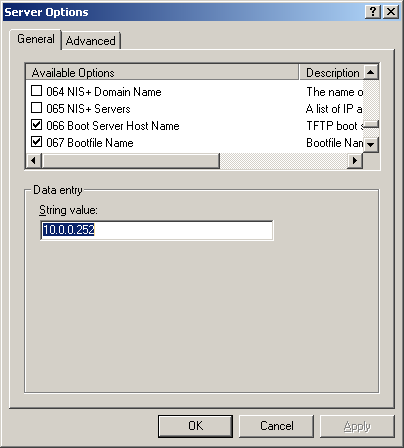
- Option 67
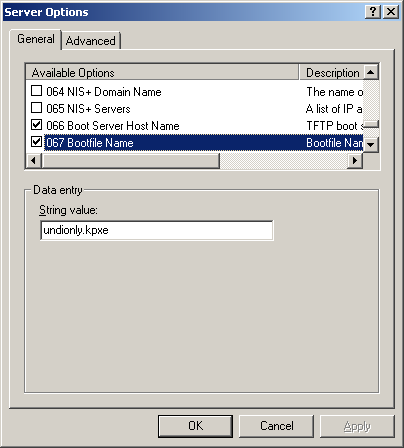
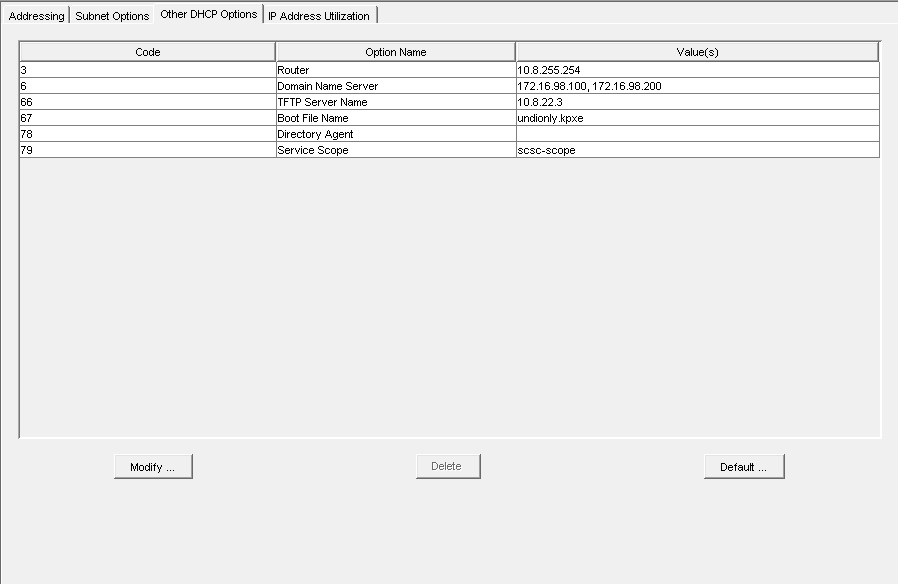
Novell (Linux) Server DHCP
- DHCP Overview from DNS/DHCP Console (Netware 6.5)
- Option 66
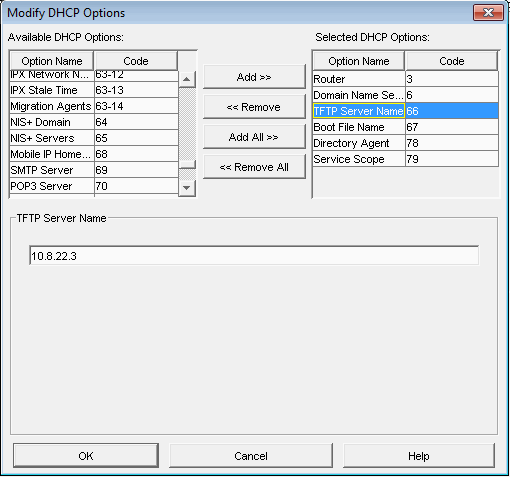
- Option 67
 Here is a link from Novell’s website on how to setup their DHCP server:
http://www.novell.com/coolsolutions/feature/17719.html
Here is a link from Novell’s website on how to setup their DHCP server:
http://www.novell.com/coolsolutions/feature/17719.html